Utilities App Icon Generator
Create professional utilities app icon generator icons with AI in seconds
No credit card required
Choose from multiple styles
Flat Design
Clean, professional aesthetic
Gradient
Eye-catching modern look
Glassmorphism
Frosted glass modern UI
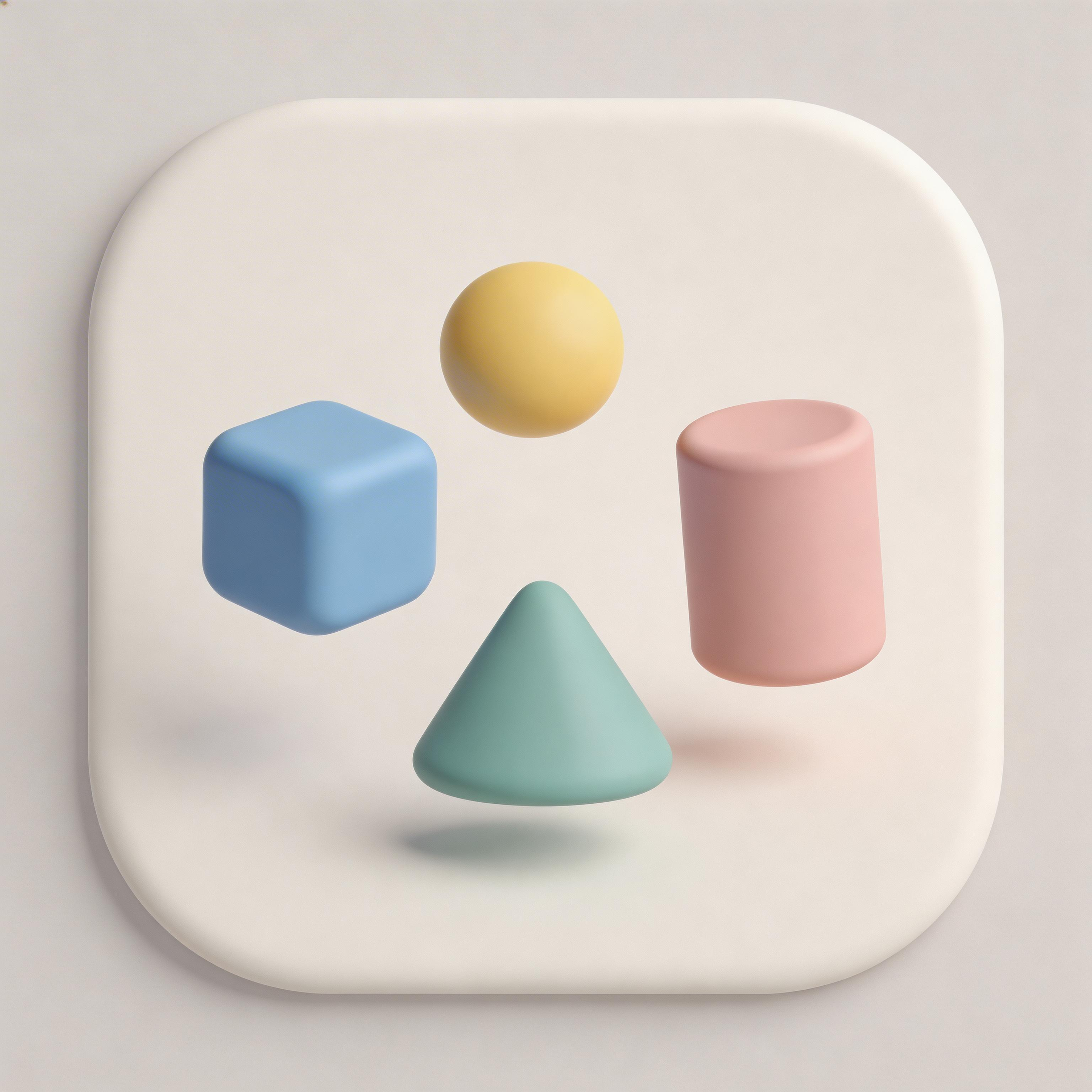
3D Rendered
Depth and realism
Minimalist
Simple and elegant
From idea to icon in seconds
Describe Your App
Tell the AI what your app does
Choose Style & Colors
Pick from optimized presets
Generate & Iterate
Create 10+ variations instantly
Export & Ship
Download all sizes for every platform
Everything you need for perfect icons
Under 10 Seconds
Generate production-ready icons instantly
All Platforms
Export for iOS, Android, Apple Watch, and web
6 Style Presets
Flat, gradient, glassmorphism, 3D, minimalist
Category-Optimized
Designed for utilities app icon generator apps
Frequently asked questions
Utilities = device functions (calculator, flashlight, scanner). Productivity = work tasks (to-do, calendar, notes).
Minimalist and flat — utility apps signal reliability through simplicity. Avoid flashy 3D or gradients.
No — differentiate with a unique color or stylistic twist while keeping functional clarity users expect.
Monochrome (gray/dark), blue (technical trust), or a single brand color on white. Clean and functional.
Ready to get started?
Utility apps face a unique design paradox: they must be so simple that users instantly understand their function, yet distinctive enough to be remembered among 10,000 other utility tools. A calculator icon should look like a calculator; a weather icon should look like weather. But when every app follows this logic, how do you stand out?
According to data.ai's 2025 Utilities Report, utility app icons that maintain symbol clarity while adding modern design treatment (gradient, glassmorphism, metallic) see 22% higher retention compared to purely flat or overly minimalist designs. Users recognize the function instantly but remember your specific app because of distinctive styling.
Last updated: April 2026 | By IconikAI Team
The Minimalism Paradox: Why Simple Icons Are Hardest to Design
This is counterintuitive: simple icons are harder to design than complex ones. A complex icon can hide mediocre design. A simple icon exposes every flaw.
The Challenge: Users expect utility icons to be instantly recognizable. The App Store has 10,000+ utility apps, each using similar symbol systems. A "calculator" icon that looks too generic will be forgotten immediately. But a "calculator" icon that's too stylized may become unclear.
The winning formula for utility icons: Symbol clarity non-negotiable. Modern treatment. Color strategy. Whitespace.
Data point: AppsFlyer analyzed 2,000+ utility app icons and found that icons with 3-4 colors (primary + accent + background) outperform both ultra-minimalist (1-2 color) and overly complex (6+ color) approaches. The sweet spot is "clear symbol + modern treatment + strategic color."
System Icon Design Rules That Apple and Google Follow
Apple iOS and Google Android define system icon design standards that utility apps should follow. These rules optimize for rapid recognition and consistency.
Apple's Human Interface Guidelines for App Icons:
- Consistent metaphors — Users see your icon once and should know its function
- Appropriate detail — Enough detail to be recognizable, not so much that it becomes noise
- Recognizable appearance — Use shapes and imagery users already understand
- Color that's strategic, not random — Color should enhance recognition, not distract
- No device frames — Never show an iPhone, Mac, or other device in your icon
Google's Material Design Icon Principles:
- Semantic — Icon meaning should be universal and unambiguous
- Geometric — Use simple geometric shapes that scale cleanly
- Readable at all sizes — Test at 27px, 48px, 108px, 256px
- Single focal point — One clear primary element
- Consistent stroke weight — Lines should be uniform thickness
Most utility app icons that fail do so because they ignore these principles: they're either too abstract (users don't understand function) or too detailed (they become visual noise at small sizes).
Utility Categories and Their Icon Strategies
Different utility subcategories use different symbol systems:
| Category | Primary Symbol | Color Strategy | % of Top Apps | Design Style |
|---|---|---|---|---|
| Productivity (To-do, Notes, Reminders) | Checkbox, List, Notes | Blue, purple, mint | 28% | Flat, gradient |
| Calculator/Math | Grid, equals sign, +- | Orange, blue, green | 22% | Minimal, glassmorphism |
| Weather | Cloud, sun, rain, thermometer | Blue (dominant), white, gray | 31% | Flat, gradient, 3D |
| Clock/Timer | Clock face, hourglass | Black, blue, purple | 19% | Flat, minimal, 3D |
| File Management | Folder, document, cloud | Blue, gray, purple | 15% | Flat, gradient |
| Settings | Gear, sliders, controls | Gray (dominant), black, blue | 18% | Minimal, glassmorphism |
| Flashlight | Flashlight beam, bulb, torch | Yellow, white, orange | 12% | 3D, gradient, metallic |
| Compass | Cardinal directions, N arrow | Blue, teal, black | 8% | Gradient, 3D, metallic |
| Converter | Two arrows, exchange symbol | Purple, blue, green | 9% | Flat, gradient |
| Health/Fitness | Heart, chart, activity ring | Red, green, purple | 24% | Flat, gradient, sportswear-inspired |
Color Psychology for Utility Icons
Unlike shopping (red for deals) or social (trending colors), utilities use color for category signaling and distinctiveness within that category.
Blue (40% of utility apps)—Signals trust, calmness, stability, digital confidence. Used across weather, productivity, file management, settings. Advantage: immediately feels "technology tool." Risk: overused; 40% adoption makes differentiation harder.
Purple (18% of utility apps)—Conveys premium, creative, distinguished. Used across productivity, task management, converters. Advantage: stands out from blue-dominant category. Emerging: growing adoption among indie and premium utilities.
Orange (12% of utility apps)—Signals energy, warmth, approachability. Used for calculator, flashlight, timer apps. Advantage: creates warm, accessible feeling. Works well for math, time-tracking, habit-building tools.
Green (9% of utility apps)—Growth, health, positive change. Used for habit tracking, health utilities, money/budget apps. Advantage: psychological association with "positive behavior." Growing trend in wellness utilities.
Gray/Black (15% of utility apps)—Minimal, neutral, professional. Used for settings, file managers, system utilities. Advantage: professional, no-nonsense aesthetic. Best for power-user tools.
Red (3% of utility apps)—Caution, alarm, urgency. Used rarely; only for emergency, alarm, or critical notification apps. Advantage: high visibility. Risk: overuse creates alert fatigue.
The Flatness Debate: Flat vs Gradient vs 3D for Utilities
Utility app icon design has followed a trend cycle: flat (2010-2016), glassmorphism (2020-2022), back to gradient/subtle 3D (2023-2026).
Flat Design (38% of current utility apps)—Pure color, no shadow, no depth. Most legible at all sizes. Feels timeless but can appear dated. Best for ultra-minimal tools, system utilities, developer tools. Example: Apple's built-in apps.
Gradient Design (35% of current utility apps)—Smooth color transition. More interesting than flat while maintaining clarity. Highly modern, trending upward. Best for consumer utilities, productivity apps, lifestyle tools. Example: Todoist, Spark.
Glassmorphism (14% of current utility apps)—Frosted glass effect, often with transparency layers. Very modern aesthetic, emerging. Requires bold symbol underneath glass. Best for premium, cutting-edge utilities.
3D/Metallic (10% of current utility apps)—Dimensional appearance, often with realistic shadows/reflections. Highest visual impact but can feel dated if not done well. Requires careful execution at small sizes. Best for flashlight, camera, physics-based utilities.
Best practice: Start with your symbol clarity (can users understand it immediately?), then apply the design style that fits your positioning. A professional utility can afford flat; a consumer lifestyle utility benefits from gradient. A premium tool can use glassmorphism.
Common Utility App Icon Mistakes
Mistake 1: Symbol Too Simplistic—Icon so minimal that it could represent any app. Problem: users don't know what the app does. Solution: add one detail that makes symbol specific.
Mistake 2: Symbol Too Complex—Icon with too many elements, tiny details, nested symbols. Problem: becomes visual noise at 27px. Solution: one clear symbol + one optional accent.
Mistake 3: Wrong Color for Category—File management app using red; weather app using purple. Problem: icon sends wrong psychological signal. Solution: blue for digital tools; orange for math/fun; green for health.
Mistake 4: No Visual Hierarchy—Icon where symbol and background have equal visual weight. Problem: users' eyes don't know where to focus. Solution: symbol should dominate; background should recede.
Mistake 5: Not Testing at Small Sizes—Icon looks great at 1024px but becomes unreadable at 27px. Problem: home screen icon is illegible. Solution: test iteratively at 27, 40, 60, 108, 256, and 1024px.
Building Your Utility Icon: By Category
For Productivity (To-do, Notes, Task Management):—Symbol: Checkbox, list, or notes icon. Color: Blue (trust, digital), purple (premium, creative), or mint (modern). Style: Flat or gradient. Example: Checkbox in purple gradient on white background.
For Calculator/Math Tools:—Symbol: Grid, equals sign, plus/minus buttons. Color: Orange (warm, approachable), blue (technical), or green (positive). Style: Flat or flat with subtle shadow for 3D feel.
For Weather:—Symbol: Cloud, sun, rain, or combination. Color: Blue (dominant, 67%), white/light gray background. Style: Flat or gradient.
For Health/Fitness:—Symbol: Heart, activity ring, chart, step counter. Color: Red (heart attention), green (positive growth), or purple (premium). Style: Gradient or sportswear-inspired.
For Settings/Preferences:—Symbol: Gear, sliders, controls. Color: Gray, black, or dark blue (professional, neutral). Style: Minimal flat.
Create Your Utility Icon with AI
Use IconikAI's free app icon generator to test dozens of utility icon concepts instantly—checkboxes, gears, weather symbols, calculators, all in modern styles.
- Describe your utility app — "Premium productivity to-do app" or "Lightweight calculator"
- Choose your symbol — Checkbox, list, calculator grid, gear, weather symbol
- Select your color — Blue for digital tools, orange for math/fun, green for health
- Pick design style — Flat, gradient, glassmorphism based on positioning
- Generate variations — Test 10+ options side-by-side
- Export for all platforms — iOS, Android, Apple Watch, web
Then create product screenshots showing your utility's interface alongside your new icon. And if you're building from scratch, custom MVP development starts at $1,000 for a 10-day build.
Frequently Asked Questions
How do I make my utility icon stand out when there are 10,000 similar apps?
Symbol clarity first (users must instantly understand function), then differentiation through color and style. Use an underused color in your category (if 80% use blue, use purple). Apply modern design treatment (gradient, glassmorphism). Make sure your symbol is slightly more distinctive (specific enough that users remember your version).
Should my utility icon follow the design of Apple's built-in apps?
Not necessarily. Apple's built-in apps use minimal flat design because they're system utilities. Third-party apps should feel more distinctive. Apple Guidelines don't require copying iOS system style—they only require clarity. Use gradient, glassmorphism, or modern styles if they fit your brand.
What's the minimum color palette for a utility icon?
One color for the symbol, one for the background. That's the minimum for clarity. Three colors (primary symbol + accent + background) is ideal and most common. More than 4 colors starts to feel chaotic. The goal is simplicity with visual interest.
How do I test my utility icon at small sizes?
Use a mockup tool (Figma, Sketch, Adobe XD) to preview your 1024px icon at 27px, 40px, 60px, 108px, and 256px. At 27px (home screen), your symbol should still be instantly recognizable—no thin lines disappearing, no details becoming visual noise. If your icon fails at 27px, it needs simplification.
Should I show a specific feature or the general app function in my icon?
Show the general app function. Utility icons work by representing the category (calculator = calculation tool, weather = weather info). If you try to show a specific feature, you lose category clarity. Icons should be broad enough that users immediately understand what the app does.
Create Your Icon Now
Generate a clear, distinctive utility app icon in seconds with IconikAI.
Generate Your Icon — Free — No credit card required.
Need feature screenshots to showcase your utility? IconikAI generates mockups with your new icon.
Building a full utility app? We ship custom MVPs in 10 days starting at $1,000.